 HTML TagWriter 3.8HTML TagWriter 3.8
E-mail: see the "Contact" section
Website: https://www.dr-lex.be/
TagWriter-site: http://go.to/tagwriter
Before we start: with a lot of buttons, extra features can be accessed by pressing the 'Command' key on your keyboard. This key looks like this:  and is not to be confused with the 'Option' key which looks like this:
  or the 'Control' key which has the letters "ctrl" printed on it.
The editor consists of a large text field (in which comes your HTML text) and 4 floating palettes with a lot of buttons. You can get quick help for each of these buttons, by holding down the mouse on a button while pressing the "Option" key. This also counts in all other sections of the program. To view your HTML document, click the "Launch" button and it will be opened in your favourite browser.
You can resize the window with the grow box in the bottom right corner. This allows you to resize the window to any size between the standard 9" and your screen's size. If you make the window really large however, TagWriter may run out of memory and will display only a part of the window. If this happens, quit and re-open TagWriter to use the larger window setting.
The bottom of the editor looks like this:
 In the bottom left corner, the size (in bytes) of the current file is shown. This number is updated sporadically.
Next to this number is the format in which the file will be saved. There are two parameters that define a file's format: the way newlines are encoded (which differs between the Macintosh, Windows and UNIX operating systems(1)) and the character set. Originally, Macintosh files used the Macintosh character set, while Windows and UNIX mostly used the ISO 8859-1 set. Recently, a transition has been started towards the much more universal UTF-8 set. By choosing the desired format here, all necessary conversions are performed automatically. If the document has a "Content-type" META tag (it should), it will be kept in sync with the format you choose from this menu. Important: when uploading your files to the web server, make sure that it doesn't convert the character set.
The  button has the same function as the Anchor button in the Objects & Tags palette: it shows a list of named objects and if you choose a name, the editor will jump to that object. The Links button
  does the same with local links (same as pressing the Anchor button with Shift held down), and the Embedded files button
  lists either the files which are embedded in the current file, or the files in which the current file has been embedded (so-called "parent files".) This allows to navigate easily between embedded files (see below).
An important thing: if you type a regular return in a HTML file, it won't have effect on your page's layout. To start a new line, you must insert a "<br>" tag at the place you would normally type the return. Luckily, this can be done automatically by pressing the Shift key while typing a return. You'll see that this will become a reflex after a while.
You can also press the Option key while typing a return, which will start a new line with the same number of trailing spaces as the previous line. This is useful for editing scripts like JavaScript or Perl.
Multiple spaces are ignored too in HTML. If you want to separate words or images with more than one space, you need to use "non-breaking spaces". These are represented by the code " " and can be typed by pressing Option-space.
If the cursor is right in front of or behind a tag (example: <B>|text...), the tag can be deleted by pressing Shift-delete or Shift-backspace respectively.
If you try to do something 'illegal', i.e. inserting a tag into another one, the buttons in the palettes won't respond. So before checking if your mouse button has died, first check if the selection doesn't end or start in the middle of a tag, or if you didn't forget to convert any '<' or '>' characters to '<' or '>' respectively.

This program offers a convenient method for editing tags: you can make a contextual menu pop up by pressing the Control key and clicking or holding down the mouse on the tag you want to edit(2). A menu will appear with all the properties which can be used for that tag. For example, if you click an IMG tag, you'll be able to change the source, width, height, alignment and much more, you can even re-scale the image or use the dimensions of another image.
The tags which can be edited with popUp menus are:
!--DYNLIST, !--MULTICOL, !--SECTION, A, ADDRESS, APPLET, AREA, B, BASE, BASEFONT, BLINK, BLOCKQUOTE, BODY, br, BUTTON, CITE, CODE, DD, DIV, DL, DT, EM, EMBED, FIELDSET, FONT, FORM, FRAME, FRAMESET, H1, H2, H3, H4, H5, H6, HR, I, IFRAME, IMG, INPUT, KBD, LABEL, LEGEND, LI, LINK, MAP, META, OBJECT, OL, OPTGROUP, OPTION, P, PARAM, PRE, S, SAMP, SCRIPT, SELECT, SPACER, SPAN, STRONG, STYLE, SUB, SUP, TABLE, TD, TEXTAREA, TH, TR, TT, U, UL, VAR.
Of course I won't explain all tags with all their attributes here. The best way to discover the possible attributes and their effect, is to experiment with them and check the results in your browser. For a complete reference of all possible HTML tags, check out the W3C website.
However, there are a few tags which demand attention:
!--DYNLIST: the "section" attribute, if present, limits the contents of the TOC to the named objects in that section (see below for help on sections).
!--MULTICOL: Since this represents a table, all table attributes can be used. If the width is specified (e.g. 100%), all columns will be of equal width (e.g. 25% for 4 columns).
A: it is possible to use both a "name" and "href" attribute in the same tag, but if you do this, make sure the "name" attribute comes first. This is because TagWriter will not recognize the name if there is something between "<A" and "name=". I could fix this, but that would make lots of operations much slower.
The "title" attribute (also for the "AREA" tag) currently only works in the newest versions of Internet Explorer.
APPLET: you should use the OBJECT element instead, defined in HTML 4.0. This is just left here for backwards compatibility. The code attribute specifies the file containing the applet's class, relative to the codebase attribute. Alternatively, "object" can be used to provide the applet's class name, again relative to codebase. The codebase may only be a subdirectory of the current file.
BASE and BASEFONT: these tags must be in the file's header, but should not be used (especially BASEFONT) in new documents.
BUTTON: can be used outside FORMs.
EMBED: it depends on the type of file that is embedded which properties can be used (e.g. for a QuickTime movie, they can all be used). In new documents, you should use the OBJECT tag instead.
FONT: you can use both the normal FONT attributes like size, style and color and the "style" attribute together in one tag. This has the advantage that if the browser doesn't support Style Sheets, it will use the normal formatting, otherwise the CSS will override it. However, most browsers nowadays support CSS.
IMG: the "align" property works in different ways according to the value: "left" and "right" align the picture relative to the page and make the text wrap around it, the other values define the vertical position of the image in the text.
INPUT: the "name" attribute is not necessary for submit, reset and image objects (an image object serves as "submit" button). For "submit" and "reset", "value" is the name which is displayed on the button. "size" and "maxlength" are only useful for "text" and "password" objects. "checked" is only valid for "radio" and "checkbox" objects. "src" and "align" are only needed for "image" objects, but it's recommended to use a BUTTON element instead if you want to use an image as button.
LINK: this tag is intended to have various uses, but it's mostly used to specify linked stylesheets. It must be in the file's header and can be set easily with the "Document properties" button (this only allows to set one LINK tag, but you can add supplemental LINK tags manually if necessary).
META: META tags must be in the file's header. Most META tags can be set easily with the "document properties" button  in the Tools&Settings palette.
OBJECT: this HTML 4.0 tag is intended to replace EMBED and APPLET tags and offers an uniform way to embed media objects.
OPTION: this tag must always be within a "SELECT" object, i.e. between its start and end tags. The text which comes right after this tag will be the text which the user can select in the list.
PARAM: must be inside an APPLET or OBJECT element. "type" is only to be provided if valuetype="ref".
PRE: the attribute "width" for this tag is not supported by most browsers.
SPACER: a spacer is like an empty image, but it's not a standard tag, hence not supported in a lot of browsers so it's recommended to either set spacing with CSS, or use a transparent GIF instead.
SPAN: you can use both the 'style' and 'class' attributes together, in which case the 'style' definition will augment or override any definitions from the 'class' attribute.
STYLE: these tags should be in the file's header. If you use the Style Sheet Editor, you won't even need to bother about these tags.
TEXTAREA: it's recommended to specify the "cols" and "rows" (= dimensions) for this, because there is no real default setting and some people may get something in their browser which can't even be used if you don't specify the dimensions yourself... The default text for a TEXTAREA object is between its start and end tags.
Mind that each 'id' attribute for any tag in a certain document must be unique, unlike the 'class' attribute which may occur indefinitely.
About the "onMouseOver, onAbort, onChange, ..." attributes: the value of these attributes must be a JavaScript function or command. If JavaScript functions are defined in the document, they will be available from the submenus. The value of these attributes will be evaluated during the event that is described by the attribute's name, e.g. if you specify ‘onLoad="welcome()"’ in the BODY tag, the function "welcome()" will be evaluated as soon as the page has been loaded.
These should be familiar. "View Picture..." and "View Movie..." can be used to preview a QuickTime-compatible image or a Movie without having to launch your graphics application or Movie Player. The "Compact stack" command will eliminate the "free space" that will build up when using the program. This is a characteristic of HyperCard-based programs, but it's not necessary to do this because it doesn't have much effect on the performance of the program. The best moment to compact is right before quitting.
The "File" palette offers some extra options next to the standard File commands (see below).
These can be used to change the look of the text in the editor window, but this has no effect on the actual HTML file itself and any changes will dissapear when saving or performing certain other actions. These menus can be useful, however, to prepare text for printing or to mark a part of the text while editing.
The palettes can be used in two ways: as floating palettes or as a fixed button bar.
The first 4 menu items can be used to open or close a palette, and commands 5 & 6 can open or close all palettes at the same time. Mind that palettes fixed in a button bar cannot be closed.
The appearance of the button bar is controlled with the following menu items or function keys:
This program has only a few menu commands for editing your document, so almost everything is handled by the 4 palettes.
The small button at the right of a floating palette's title bar reduces it to only its title bar, this is the same as "WindowShade" in MacOS 8. And like many other Mac windows, you can drag a palette without bringing it to the front by holding down the Command key.
Most buttons in these palettes can be used in several ways: simply clicking them will perform a "standard" action; buttons whose icon has a small "triangle" feature a pop-up menu with more options, which can be reached by holding down the mouse on the button until the menu pops up. Some buttons also perform special actions when the Shift or Command keys are held down.
These palettes can be 'called' anytime at the right position by typing their command key code with the Shift key held down. For example, you're typing at the bottom right corner of your 21" screen, you want to apply a style but the 'Text' palette is at the top left corner of the screen, at a distance of thousands of pixels. Don't touch your mouse, but simply press Command-Shift-T and the palette will pop up just above the selected text!
The same counts for the other palettes: look in the "Palettes" menu for the appropriate command key codes. Mind that this does not work if the palette is fixed in a button bar.
If you have an extended keyboard, you can also use the Function keys (F1 to F7) to control the palettes: F1 to F4 have the same effect as the menu commands 1 to 4 of the "Palette" menu and F5 to F7 have the same effect as "Normal ButtonBar", "Full ButtonBar" and "No ButtonBar" respectively.

-New: Makes a new HTML document. You will be asked the name, text size, background color and/or other document properties, depending on the settings in the preferences. Of course you can change or add these later at any time.
If you hold down the mouse on this button, you can choose to make a minimal HTML document (with only the very necessary tags), a blank document (no tags, useful for embedded files), a frameset, or to "clone" a file. The latter means that you create a new document with the same header & body properties as an existing file.
You can create one of 4 preset types of framesets. Of course you can resize and add frames to your taste afterwards by editing the templates. However, anything more complex than these 4 templates is to be avoided. Mostly even only the first two templates should be amply sufficient. After creating the new frameset, don't forget to replace the "PAGE LOCATION x HERE" with real URLs. Remember, you can achieve similar effects with a good CSS layout without using frames, which are deprecated in the HTML 4.01 standard.
-Open..., Save, Save as...: These are standard functions, so I suppose no explanation is necessary.
If you hold down the mouse on the "Open..." button, a pop-up menu appears with the last 5 files and your favourite files!

- Mark & Select Mark: You can use the 'Mark' button in the editor to mark any text in the document. You can use this feature to insert clickmap data or imported text: after having marked the place where the data or text should be placed, go to the map maker or text importer. When you're done, click the 'Insert' button there and the data or text will be inserted at the marked position. If you click the 'Select Mark' button, the marked text is selected.
- Table: As you may know, tables in HTML are one of the trickier things to make and on top of that, different browsers used to have different "interpretations" of table layout. If you click this button, a new table will be inserted with a single column & row. To minimize the tag-typing work, there are several advanced options available from the pop-up menu:
- ImageMap: Click this button to go to the ImageMap maker. Imagemaps are pictures with different regions in it which serve as 'buttons', these can be rectangles, circles or polygons. You can assign a link to each region.
See below for help on the ImageMap maker.
You can easily edit a map in your document by selecting it (entirely) and choosing "Edit this map" from this button's pop-up menu. This will do two things: it will mark the selected text and put the selected map into the map editor. So when you're ready editing the map, just click the "Insert" button in the map editor and the new map will be put in place of the old one.
To import a map from an external file, click at the place where it should be inserted and choose "Import from file..." from the pop-up menu.
- Text Import: click this button to import a text file. For help on the Text importer, see below.
If you're about to import some text at a certain position in your document, it's handier to select that position and then choose "Import text here" from the pop-up menu, which first marks the position before going to the text importer, or "Edit this text", which marks the text and copies it to the text importer for editing.
- Find &
  Replace: quite obvious what these do. Mind that these are not case sensitive. To search on, press Command-G. Hold down the mouse on the "Find" button to choose where to start searching. You can replace text in a part of the file by first selecting that part and then clicking the "Replace" button.
"Multiple files..." takes you to the Multiple File Search & Replace.
- Properties: You can change the document's properties (title, background color,...) and style sheets at any time by holding down the mouse on this button and choosing a property to change. You can delete a property by choosing "Default" or "None" from the pop-up menu. Mind that you can't (and shouldn't) remove a file's title.
The third section in this menu controls META tags. You should always use 'Auto' with the 'Content-type' menu, unless you really know what you're doing.
A note on the "Framebase" property(4): this (non-standard) META-tag allows you to specify whether a page is used within frames or not. You can use this together with the "Auto target" feature (see Preferences) to prevent http:// links from being opened within frames unwantedly. If you specify a file, you will be able to choose the available frame names for the "target" attribute in the pop-up menus for "A", "AREA" and "BASE" tags.
- : To open the document in a browser, click this button. If you want to use a browser different from the default, hold down the mouse on this button for a pop-up menu (see below for information on how to list these browsers). Keyboard shortcut: Command-Enter.
If you click this button while editing an embedded file, the file in which it's embedded will be launched. If there are multiple files, you will be prompted to choose a file to launch or open.
- Preferences: Click this button to edit this program's preferences (see below). Hold down the mouse to go to a specific preferences card directly.
- Grow: this button has a pop-up menu with three commands: 'Minimize' sets the window to the minimum size (= as small as it would look on a 9" monitor), 'Fit to screen' sets the window to a default width of 608 pixels and to a height which fits exactly in your screen, and 'Center window' aligns the window horizontally to the middle of your screen.

- Font: you can alter font size, face or style with the pop-up menu. There are 7 text sizes. In most browsers, the text size '3' is the default and corresponds with 12 point text. (Shortcut: press Command-n, where n is a text size from 1 to 7.)
The font faces can be chosen from a user-defined list (see preferences) or from scratch; it should be a comma-separated list with the most preferred font first.
The "style" submenu allows you to apply a style defined by a Cascading Style Sheet(5). Here you can choose too from a pre-defined list, or use a custom style from the Style Sheet Editor.
If your file (or a linked stylesheet) contains style definitions, these will also be available from this menu under the item "class". For "style" and "class", the FONT or SPAN tag is used, depending on the setting in the preferences. Of course, the 'class' menu will only be available if your style definitions contain classes for the respective tag, or unrestricted classes.
- Headers: There are 6 header styles, with H1 most important (and thus biggest). The text size and style are set automatically unless you have changed them with style sheets.
- Bold, Italic, Underline, StrikeThrough: StrikeThrough draws a line thrgough the text.
The text styles bold, italic and underline can also be applied by pressing Command-B, I or U respectively.
- Superscript, Subscript: Useful for mathematical formulas or chemical notations like C2H5OH.
- 'Logical' Styles: Hold down your mouse on this button and you'll get a whole bunch of these styles. Some of them have just the same effect as Bold or Italic, but others have a specific purpose: 'Pre-formatted' displays text as it is present in the HTML source code, so with carriage returns. 'Code', ... to 'Monospaced' sets the text in a monospaced font (like Courier), and 'Blockquote' separates the text from the rest of the page. Mind that 'Blink' is a controversial tag due to the fact that many people hate blinking things. Therefore it's not supported in many browsers.
- Text Color: If you click this button you'll get a list of the available color names. You can choose between these, or you can click "Custom" to select another color with the Apple Color picker.
Shortcut: hold down the mouse on this button for a pop-up menu. You will even see samples of the colors in this menu!
- Paragraph: Makes a new paragraph with the chosen alignment (hold down mouse). In new documents, you should avoid using this obsolete method of aligning and use CSS instead.
- DIV: The DIV tag defines a new 'block' in your HTML document, which allows to apply different styles to this block only, using CSS. It is similar to a P element, but has no margins by default. A DIV will be as wide as it can be, but the width can be limited with CSS. Again, CSS is to be preferred over the obsolete alignment attributes. Beware that P and DIV are 'block elements', which can't contain certain other types of elements. Read the HTML 4.01 standard for more info.

- Link: Select the text to be linked and click this button. You can choose from different types of links by holding down the mouse on this button. If you want to link to a local file, choose "Choose file..." in the submenu under "local file" and open the file, its URL will be inserted automatically. Mind that this only works if the file you're working on is saved already (otherwise it would be impossible to determine the link's location!)
If there is an e-mail address or a http:// link in the clipboard, or you have selected one in your document, you can choose it from the submenus, and in the latter case you can simply click this button and it will be linked automatically! Also, any http:// links which are present in the lower field of the text importer, will be available from the submenu.
In most browsers, it used to be possible to make a small comment appear at the bottom of the screen when moving the mouse over a link, by using a small piece of JavaScript in the link's tag. To use this feature, hold down the Command key while you click the "link" button or choose your link type from the pop-up menu, and type the comment. Mind that quotes " and single quotes ' will be converted to " and \' respectively, to avoid JavaScript syntax errors. Keep this in mind when changing a comment afterwards. Mind that this trick doesn't work well in many modern browsers, so don't rely on it.
You can mark parts of the file as named objects, by choosing "Object name" from the link pop-up menu. This is useful for navigating through large files or making links within files.
You can go to any named object by holding down the mouse on the 'Anchor' button and choosing its name. You can easily make a link to such an object by choosing its name from the submenu under "#anchor link" in the pop-up menu.
"Document section" marks the selected text as a "section", which is a HTML TagWriter-specific feature. Sections can be used to determine the contents of dynamic TOCs, see "New list" below for more info.
- Anchor: This button allows to jump to any named object or to the top or bottom of the document, and also to embedded files (if any). If you press Shift when holding down the mouse on it, you can do the same with local links in the document. The same functionality is offered by the three buttons at the bottom of the window.
- Horizontal line: This inserts a simple horizontal divider. To choose its thickness, hold down the mouse on this button. Hold down the Command key to insert a black (non-shaded) divider. However, it's recommended to use CSS instead to change the appearance of a HR element.
- Image: Hold down the mouse on this button to choose which image you want to insert:
The numbers in the submenus represent the border size for the image; if you choose the main menu item only, the border will not be specified (= no border for normal image, border 2 for link).
When inserting a picture, you will be asked to type a comment, which is the text that appears in the place of the image before it is loaded or when it can't be loaded. This is not necessary, but recommended. Not all people can see the actual image, so they'll be grateful to know what they ought to see.
- Object: An object can be: a JavaScript (a script which is executed while the page is opened in the browser), a Java Applet (an external program written in Java) or an embedded object, like a sound, movie, QTVR panorama... The
 <EMBED> tag(7) may require some extra attributes according to the type of object.
If you embed a QuickTime movie, its dimensions will be automatically inserted and you can choose to set the "autostart" feature on or off. The dimensions used are those with the control bar included, so if you disable the movie's controller, you need subtract 16 pixels from its height.
The HTML 4.01 standard defines a new OBJECT tag which replaces the EMBED and APPLET tags. However, you'll need to insert this tag manually.
- New list: From this button's pop-up menu, you can choose between three types of lists: unordered, ordered or definition list. In unordered lists, each new item starts with a bullet (disc), circle or little square. In an ordered list, each item gets a number (1,2,... or I, II, ...) or letter from the alphabet (A,B,... or a,b,...). You can choose which kind of dingbat or number format to use, but it's recommended to use CSS instead. The default list type for this button (when you only click it) is unordered.
The other menu items can be used to make static or dynamic Tables-Of-Contents (TOCs). These are auto-generated lists of all named objects with links to them. The first 3 types are "static", which means that their actual HTML code is inserted so you can modify it. The last 3 types are "dynamic": if you insert one of these, only a command is inserted, which is evaluated while saving the file. This makes sure that the list is always up-to-date, even if you remove, add or change a named object!
These dynamic lists can be restricted to a specific section of your document (you can create sections in your document with the "Link" pop-up menu). These sections' names can be selected from the attribute pop-up menu for "!--DYNLIST" tags. Example: if you created a section "Specifications" and you insert a tag like this: <!--DYNLIST type="O" dingbat=2 section="Specifications">, you'll get a list with only the named objects in the section "Specifications" in it.
If you want all the links in the list to point to a certain target frame, specify a "target" attribute for the "!--DYNLIST" tag, which will then be applied to all links in the list.
The dynamic lists and section tags are specific for HTML TagWriter, so they won't work in other editors.
- New list item: To insert a new item in a list, click this button. If you want to use a number format or dingbat different from the list's, or select between definition term and definition, choose it from the pop-up menu. Be sure to only use dingbats or items of the type of list you're in.
Don't use list items outside lists. Although it may work in some browsers, it's not standard.
- Form: Inserts a new form, or form element. You can choose between the "post" (default) and "get" sending methods from the pop-up menu. You need to specify an "action", which can be an e-mail URL or the URL of a cgi-script.
A "Fieldset" can be used to group input fields in a form together. Each Fieldset should have a "LEGEND" element which contains a short title for the group.
A "Label" allows to link a piece of text in your document to an input element, for instance the text "Type your name here:" to the corresponding text box. Labels make it easier (especially for disabled people) to use forms. You can use an "implicit" label by selecting the text and input element together and wrapping them in a label, but this is only allowed if no table tags or other input elements are within the label. For an "explicit" label, first assign an "id" attribute to the input element, then create a label with this ID (available from the submenu). You can assign multiple explicit labels to the same ID.
- Input: There are lots of input objects for forms, divided in three categories. The "Input" category is divided in text type objects and buttons. The name of a text input object is the one that will be sent with the form, and can be used in scripts too. "Textarea" is a scrollable text field. Its default size is not defined so TagWriter uses some reasonable values, which you can change afterwards of course. "Button" elements are like button-type Input elements, but the difference is that they have both a start and end tag, and anything between them will act as the button. Therefore it's recommended to use this system to make an image a button because it gives more freedom.
The default item for this button (when you simply click it) is a "text" Input object.
- Select: Inserts a selection list, list item or group of list items (hold down mouse to choose, default is item). An item ("Option") or group ("Optgroup") must always be within a "
SELECT" object. Options within an OPTGROUP element - if supported - will be rendered as a submenu in your selection list. In HTML 4.0, OPTGROUP elements may not yet be nested.
- Color code: In HTML, you can use either color names or RGB color codes. There are about 16 standard color names, and as much as 16.777.216 color codes. Don't worry, TagWriter will generate those codes for you. If you want to insert a color name or code, click this button to choose from the available names, or to use a custom color, which can be picked in the good ol' Apple Color Picker.
Shortcut: hold down the mouse on this button for a pop-up menu. The 16 color names in this menu are accompanied by a sample of the color they stand for.
If you want to edit an existing color code in the HTML file, select it (with or without quotes) and click this button. Click "Custom" to view and edit the color, or choose a color name from the list. The 'Color' button has more features: hold down the Command key while holding down your mouse on it and you'll be able to choose from some exotic features...
One of these features is 'rounding' the color to a 'web-savvy' code: this is a set of 216 colors which look good on 8-bit color monitors on all platforms. They have only 33,66,99,CC or FF in their color code. All other colors will only look right on high-resolution monitors.
- HTML-ize: To insert line break tags where necessary and convert special characters (à, é, ü, <,...) into valid codes (depending on the preferences), select the text to convert and click this button.
- Nuke tags: removes all HTML tags and only keeps the text. Hold down the mouse for a pop-up menu which allows to delete only certain tags, like text formatting, tables, images, ... When nuking all tags, you can choose whether to convert character codes and line breaks or not. When removing script tags, only the "SCRIPT" and "NOSCRIPT" tags will be removed, the scripts themselves will stay.
An unfortunate limitation of HyperCard-based applications like HTML TagWriter, is that a text field cannot hold more than 30000 characters. So if you want to make a larger file, you need to split it up. But finding a way to work around this limitation has resulted in quite a powerful feature. The "Embed File..." menu command embeds an external file in your document, without actually adding it to the file in the editor itself. Only a command is inserted in the file, and as soon as you save your document, the external file is copied into the document, making one solid file. When you open a file with embedded files, they are stripped and only the embed command is kept, to ensure that the files will be re-inserted when saving.
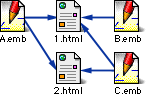 This allows you to make files much larger than 30K, and you can include the same part (e.g. a header or footer) in a lot of pages. In the image at the right, a situation is illustrated where the file "1.html" has three embedded files: A,B and C, and "2.html" has A and C. So A and C are "shared" between the two files, which is perfectly possible. "1.html" and "2.html" are called "parent files". This very help file uses embedded files (try opening it in TagWriter and look at the top & bottom of the file)!
Embedded files are "dynamic", which means that when you edit a file that has been embedded in other files, all those files will be updated automatically when saving that file! This system works with relative URLs (if the files are on the same disk), so as long as you move both files without changing their relative position, you can put them anywhere without breaking the "link" between them. The best (and most logical) place for an embedded file is in the same folder as the file you want to embed it in. If you use links and images in an embedded file, it must be in the same directory as the "parent" file while you're editing it, otherwise local links and image URLs will be incorrect.
To make working with embedded files easier, style definitions, named objects and JavaScript functions defined in the embedded files are also available in the "parent" file, and if a file is embedded in only one file, this also counts in the reverse direction! (If it is embedded in multiple files, a reverse link is impossible because names and functions of the different parent files would get all mixed up.)
You can embed as much files (or the same file more than once) in another file as much as you want, but you can't embed a file in a file which is embedded itself. Embedding a file within itself is not possible (and not useful anyway except for studying infinite loops). Also very important: embedded files should normally have no HTML, HEAD or BODY tags in them!
To discern embedded files from the normal HTML files, it's recommended to use a different extension for them, like ".emb".
When you open a file with an embedded file of which the source file cannot be found, you will be asked whether to save its contents (recommended) or not.
Note: when uploading files with embedded files to your webspace, it's not necessary to upload the embedded files.
You don't need to worry about the file format of embedded files: if the format differs from the file it is embedded in, it will be converted automatically. (For instance, if you have a UNIX-format file which has embedded files in Macintosh and Windows formats, the resulting file will be entirely in UNIX format.) However, this slows down save operations, so it's recommended to always use the same file format.
When opening a file that is larger than 30000 bytes, you can choose to have it split up into smaller parts which are embedded in the first part. This results in a file which looks exactly the same as the original in your browser, but which can be edited in TagWriter. During this process, TagWriter tries to make chunks of 25k to 27kBytes which are separated at logical positions, like the start of a new paragraph or table. So in the worst case, you still have 3000 bytes left per file to add text.
To go to the imageMap maker, click the imageMap button in the "Tools" palette.
The map maker will tell you what to do after each step. The picture to be mapped may be in a graphics file, like GIF, JPEG (requires QuickTime) or PICT, or in the clipboard. To start, click "New" and follow the directions on the screen.
The map definition must be inserted into the BODY of the HTML document (e.g. right after the BODY tag or before the image's tag). To apply the definition to a picture, insert 'usemap="#mapName"' in the picture's tag (where mapName is the map's name, indeed). Of course this can be done easily with the contextual pop-Up menus.
You can move all objects horizontally or vertically, or scale the entire map. Mind that ovals cannot be used, so if you apply a non-proportional scale, circles will be transformed into circles with an approximative radius, not into ovals.
This imageMap maker is handy for small and simple maps, but for more complex maps you may want to use external tools instead. A map file which has the same syntax as the old 'Mapper' program can be inserted easily by holding down the mouse on the "Map" button and choosing "Import from file...".
Click the "TextImport" button of the "Tools & settings" palette to go to the text importer.
To import a text file, click "Open...". The file's contents will appear in the upper frame. To convert the file, click "Convert".
You have various options here, like converting the character set between Mac, ISO-8859-1 (or -15 if you checked "Euro compliant conversion" in the preferences) and UTF-8, and converting WWW mail forms (these can look like '1+2%2C%0D%0A%0D'). You can convert any text to HTML-format, which is useful to maintain paragraphs and to make sure that special characters like á, ö, ... are displayed correctly on all platforms.
When the text is converted, you can save it or insert it into your HTML file with copy & paste, or by pressing the "Insert" button (if you have marked the position where it should be put with the "Mark" button in the "Tools" palette).
When saving a file in the Text Converter, you can choose the newline format. In contrast with the "File format" feature in the Editor, this only determines the characters used to mark a new line, not the character set, which is saved "as is".
If there are http:// links in the lower text field, these will be available in the Editor's pop-up menus for links and A tags.
You can reach the Style Sheet Editor from the "HTML Tools" menu, from the "Document properties" button, or just by editing a style. When you're editing more than a single style, i.e. in the first two cases, an extra field will be visible at the bottom. You can add, remove or edit styles from this field by holding down the mouse on it and choosing the desired command from the pop-up menu. When you're done, you can save the styles in a new file (which can then be used as linked stylesheet), in an existing file, or you can insert them into the file currently in the editor.
When editing multiple styles, you can select for which elements (tags) a style should be used. For example, you can redefine the "STRONG" tag to your taste. You can also create multiple "classes" or "IDs" of styles per tag, by giving them different names. These will then be available for the "class", respectively "id" attribute of the pop-up menus, or in the Font pop-up menu in the Text palette. If you then use the attribute class="className" or id="idName" for an element, the text between its start and end tags will show up in the style associated with the class or ID name. Remember that an ID must be unique in a document, i.e. you can't have two elements with the same 'id' attribute.
You can also create styles which are available for all tags (these will have a definition looking like ".className {...}" or "#idName {...}").
To use the same style definition for multiple elements, hold down the Shift key while choosing the elements' names from the pop-up menu, or type them, separated by commas, in the field. I.o.w., the definition should look like "element1, element2.className, element3 {...}".
Mind that not all browsers support all style features properly, although the situation has been steadily improving since CSS was introduced.
Attributes not available in the editor itself, will be stored in the small field at the right. You can edit the contents of this field, they will be added to the style. This can be useful to add custom CSS attributes. There are far more attributes than the ones available from the editor.
You can use both an image and a color for the "background" feature (this is recommended, because if the image doesn't load, the color can approximate it). When using an image as background, you will need to select the folder in which the style sheet will be saved, to get the relative path correct (you won't need to do this when editing a style from within the editor because then it's obvious enough in which file the style is used).
Choose "Exhaustive link check..." from the "HTML Tools" menu to go to the link checker.
To start an exhaustive link check, open a file of your site which is linked to all other pages, in most cases this will be the "index" file. The link checker will then search all local links, check them, go to the valid files and start over, and so on until there are no more files left to check. (If a file has embedded files, these will be checked too.)
In the upper field, the files containing bad local links are shown. You can open a file by Shift-clicking its name, or you can click it to see which links were invalid in the file. If you Shift-click one of these links, the file will be opened too and the bad link will be searched.
In the lower field, all bad links are summarized. You can specify a correct link for each invalid one by clicking it. When you're ready, click "Replace links" and all invalid links will be replaced by your corrections. Links with no specified correction will remain as they are.
Each time you make a major change to your site, it's recommended to do an exhaustive link check, even if you checked each file separately with the editor's link check... maybe you forgot one. After correcting, it's a good idea to redo the check to see if there are no errors left, or new errors introduced.
To go to the preferences, click the "Prefs" button in the "Tools & Settings" palette. The preferences are spread over four cards which can be accessed by the tabs at the top. You can go directly to a specific card by holding down the mouse on the "Prefs" button.
framebase" META-tag (set by the "Properties" button in the Tools & Settings palette, see above).<HTML>" tag in the first 2 KBytes and a "</HTML>" tag, all other files will get the "TEXT" file creator. Mind that changing the 'creator' has no effect on the actual contents of your files.
!--MULTICOL tag versus the MULTICOL tag: In some versions of Netscape, you can use the "MULTICOL" tag. This tag makes the text show up in multiple columns. You may be wondering what's the difference between the "!--MULTICOL" tag used by TagWriter. Well, the "MULTICOL" tag is only supported in Netscape, it only allows equidistant columns and it has very limited formatting possibilities. Because TagWriter's "!--MULTICOL" tag actually represents a standard HTML table, you can do much more with it, like determining the width, background, border... and you can have the items sorted automatically. The only advantage of the Netscape MULTICOL-tag, is that it is more suited for continous text. But since it's not supported by other browsers, it is strongly disrecommended to use it.framebase" META tag: Up to version 3.7 of HTML TagWriter, the "framed" META tag performed the same function. However, because this tag used a format which did not comply to META tag standards, it was replaced by this new tag. If you open a file with a "framed" META tag, it will be replaced automatically by the appropriate "framebase" equivalent, so you won't notice anything.EMBED" tag: this tag has nothing to do with the embedding of files with the "Embed file" command from the "HTML Tools" menu!